Outlook knows where your two o'clock is. The address is right there on the appointment. It will still let a colleague drop a call into the half hour before it, because as far as Outlook is concerned you can be in Salisbury at 1.30 and Yeovil at 2.00 without leaving your desk.
If you have ever tried to add travel time to your Outlook calendar and keep it there, you will know the problem is not doing it once. It is doing it for every appointment, and again every time one of them moves.
Can Outlook add travel time on its own?
No, not automatically. Outlook has no setting that looks at where a meeting is and works out the drive. What it offers is the manual version: drag a block into the gap yourself and call it "travel", or set up a recurring travel event for the days you are usually out. If people book you through Microsoft Bookings, you can add a fixed buffer either side of every booking.
All three share the same two flaws. They assume every journey takes the same time, so a ten-minute hop and an hour on the A303 get the same block. And none of them move when the meeting moves, so the block you made on Monday is guarding the wrong hour by Wednesday. Which is why most people stop doing it after a fortnight and go back to hoping.
What automatic travel time looks like
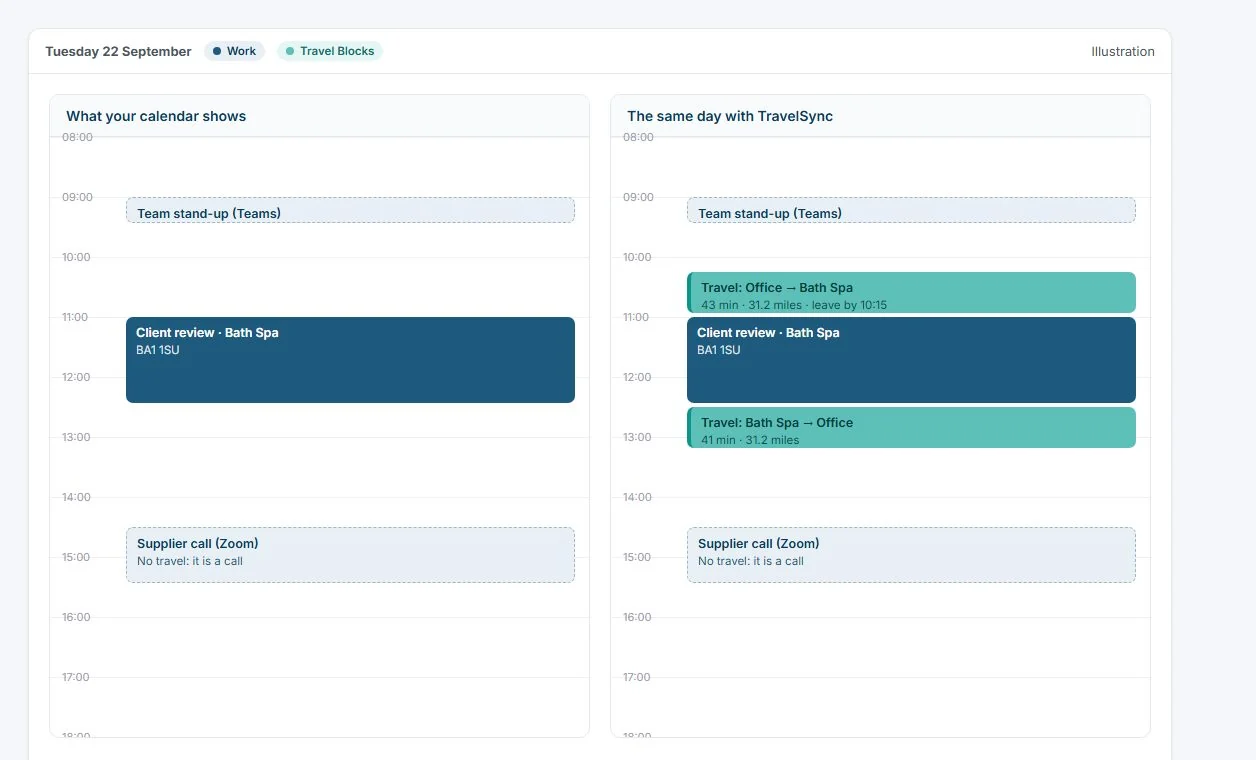
TravelSync connects to your Microsoft 365 or Outlook.com account and watches the calendars you choose. Every hour it looks at each upcoming appointment with a real address, asks Google Maps how long the drive is from wherever you will be beforehand, and writes that time into your calendar as a busy block before the meeting and after it.
- Back-to-back visits are chained. It routes you from the first client to the second, not home and out again.
- Before nine and after five it assumes you are starting from home; during the day, from the office. Both addresses are yours to set.
- Teams calls, phone calls and anything with a video link in it are skipped. Only meetings with a physical address get a block.
- When a meeting moves, its travel blocks move on the next run. When it is cancelled, they go.
- Overnight trips are understood. Three days in Edinburgh gets one drive up and one drive home, not a phantom commute every evening.
The blocks are marked busy, so the colleague looking for a slot sees you are on the road. That is the whole point: your availability tells the truth without you policing it.
How to set it up
Sign in with your Microsoft account. Choose which calendars to watch and which one the blocks go into (a separate "Travel Blocks" calendar by default, so your main one stays tidy). Enter home and office, pick how early you like to arrive, and that is it. About five minutes. If your work account is managed by an IT team, they may be asked to approve the connection the first time, and that is a one-off.
If you would rather see what it will do before it touches anything, there is a preview mode that shows the blocks it would create without creating them.
It's the same product on Outlook as on Google Calendar
Everything works the same way on either side. Every journey it blocks is also recorded, with the road distance, so you get an HMRC mileage log built from your diary without a GPS app running on your phone. Connect an account and it rebuilds the last two years of journeys from the appointments already there. Out-of-office replies go out from your own Outlook mailbox, in the thread, when a calendar event carries a keyword like #holiday. And if you want telling when to leave, the "leave now" email and the morning briefing come from the same drive times.
Both personal Microsoft accounts and work accounts on Microsoft 365 are supported.
The part that took weeks
Reading an Outlook calendar sounds like the easy bit. It was not. Jamie, who built TravelSync, on the first thing that went wrong:
"[When] the list is long, Microsoft sends it in pages, and the 'next page' link it gives you is sometimes simply broken. Not always. Not predictably. The same request can work perfectly one minute and fall over the next. I eventually gave up on Microsoft's page links entirely and built my own way of walking through a calendar in time order, which took weeks. Weeks of work on something no user will ever see, so that the thing they do see just quietly works."
That is the standard the Outlook side is held to. It has to be as reliable as the Google side, or it is not worth having.
Who this isn't for
If every meeting in your week is a Teams call, there is nothing to block and TravelSync will sit there politely doing nothing. If you travel by train, the drive times will be wrong for you; it is built around road routes. And Apple Calendar is not supported yet, though it is on the list if enough people ask.
For everyone else with an Outlook diary full of postcodes, the gap before your two o'clock can finally show what it is: the drive.
Start a free 14-day trial, connect your Google or Microsoft calendar, and see your own diary with the driving in it by this time tomorrow. No card needed. Start your free trial.